Customizing Windows 10 for Schools

Using Windows 10 1703 Education, I applied a number of customizations, drawn from several expert sources and cobbled together into my own Frankenstein’s-Monster of a deployment, with SCCM 1702.

Strategy and Design

Like with all good projects, we need to figure out what the hell we’re trying to do in the first place before leaping into actually doing it.  So we’re going to move all of our deployed computers throughout the district to Windows 10.

Great.

How?

It’s not as simple as “build an image, slap in some software that’s common to everyone, wait for the summer, and hit the uncooled classrooms in the middle of July.”  The default installation of W10 is, at first glance, geared more toward a home-user/personal-experience motif than a professional environment where we take things seriously.

We need to get rid of the superfluous stuff in the Start menu, provide only what’s necessary in the task bar, shut down all the privacy holes, but at the same time still allow staff and students to be able to customize the computing experience (within reason).  We’re not so draconian as to prohibit changing wallpapers and color themes, but we’d also like to provide at least a more organization-centric set of options to begin with.

We’d like to see some simplified task sequences in SCCM, so that if we need to make updates district-wide, we’re not stumbling over the entire console, making repetitive changes to every task sequence.  This means more creative use of task sequence variables and making sure our OUs in AD are cleaner (hah!) and appropriate (hee!).

Setting the Stage

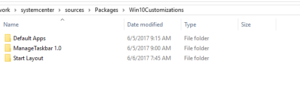
In my SC deployment share (\\[SCCMShare]\sources\packages), I created a folder named “Win10Customizations.”  This will house all of the files, scripts, and folders.
The Details

Start Layout

I wanted to use a partial Start layout so that the commonly used apps in our organization are available immediately, all the superfluous nonsense removed, and still allow users customization ability.  I used my reference machine to build out the Start Menu the way I wanted to see it, then exported its XML with Powershell (see Links & Resources below).

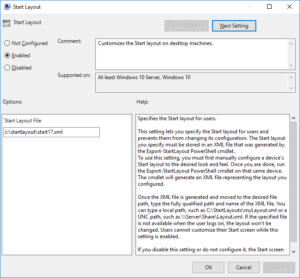
I created a GPO simply titled “Win 10 Start Layout Customization” and made the following changes:

Computer Config > Policies > Administrative Templates > Start Menu and Taskbar set to Enabled and added the path to where my XML would reside on the local drive (in my case, C:\StartLayout\start17.xml)
The second step is to use a Powershell script to create the folder and copy start17.xml to the local drive from our SCCM share.  The script that I used (through lots of trial and error, as I’m quite a PS newbie) is:

$folder = "C:\StartLayout"
$file = "start17.xml"
$fullPath = "$folder\$file"

$source = "\\systemcenter\sources\packages\Win10Customizations\Start Layout\start17.xml"

# Check if folder & file already exist

if (!(Test-Path -path $fullPath)) {
 # File & folder do not exist, so check if the folder by itself exists
 if (!(Test-Path -path $folder)) {
 try {
 New-Item $folder -ItemType Directory
 }
 Catch {
 Write-Warning "Error in creating folder: $error"
 break
 }
 }

}


# Folder has been created or already existed, so copy the file to it

try {
 Copy-Item -path $source -destination $folder
}
Catch {
 write-warning "File already exists."
 break
}

As I’m looking at this code, I realize that I made a few inefficient moves already, but again, I’m still learning!  If you have a cleaner or more robust way of accomplishing the same thing, I’m all ears!  But I think you get the point of what I’m trying to do here.

I placed both the Powershell script and the Start layout XML in the same folder.  Then, I created a no-program package in SCCM for the Start Layout.  This is then added to my task sequence, calling a Powershell script referencing the above:
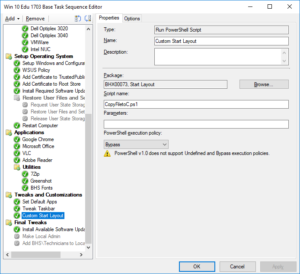
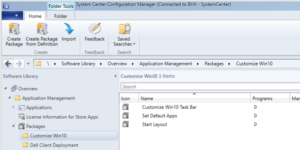
Next, I wanted to get rid of some of the apps in the Start Menu that we’re not going to need in-district.  To do this, I followed Jörgen Nilsson’s instructions for grabbing a list of apps and then manipulating the script to remove them.

Links & Resources

https://blogs.technet.microsoft.com/deploymentguys/2016/03/07/windows-10-start-layout-customization/#Partial

https://4sysops.com/archives/pin-apps-to-the-taskbar-in-windows-10-1607-with-group-policy/
Behavior Management vs. Technology Management

A question came up on one of my mailing lists about what some school districts do to manage students’ personal devices connecting to district networks.  The inquirer’s administration wanted to shut down all guest wifi access as a way to curb social media bullying and other antics, with the assumption that giving students the alternative of having to use their plan minutes would be sufficient as a deterrent.

This seems like an overreaction instead, as well as relying on external forces to manage internal forces.  This is a behavior management issue, as the technology is a tool being misused.  While reducing or eliminating access to those tools would address the issue, how does that impact the rest of the population?

If a handful of students are misbehaving and misusing the technology made available to all students, and that technology is taken away from all students, what are the consequences?  If guest-access wifi is removed, not only does that impact the entire student body, but also any guest speaker, parents, business contacts, and even visitors from neighboring schools.

Drunk driving could easily be resolved by banning all vehicles and alcohol.  Is that the right solution, though?

If there are flies buzzing around from something that’s spoiled in the kitchen, do we remove the entire kitchen?  Or do we hunt around for the rotten meat that fell behind the stove, which is where the flies have congregated?  Yes, it more work to trace the source and to clean up the meat, but it doesn’t go overboard by demolishing the whole kitchen.

SCCM Query for Windows 10 Versions Less than 1607

We started deploying Windows 10 on a wider scale to our users in the summer of 2016.  However, our SCCM installation was broken at the time, so we weren’t able to provide too much in the ways of updates.  We created a from-scratch task sequence of Windows 10 using 1511 as our base, figuring that once that was done ahead of the 2016-17 school year, we could then concentrate on repairing, restoring, or reinstalling SCCM.

Several months later, we reinstalled SCCM and updated to 1702.  Now we can get back to work.

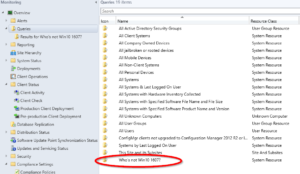
I wanted to know which of the machines out there that have Win10 are still on versions older than 1607 so we’d know what we’re dealing with for the forthcoming upgrade project.  To do this, I created a query in the Config Mgr console:

The query pane

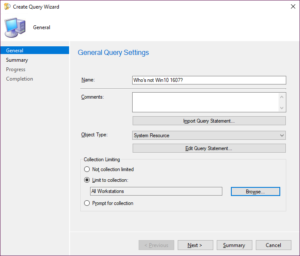
Start by clicking Create Query either in the ribbon or right-clicking on “Queries” in the navigation pane or in the results pane.  This launches the Create Query Wizard.

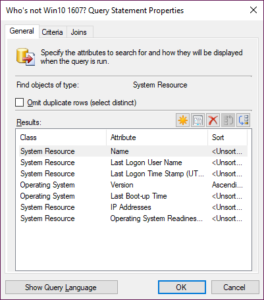
Enter a name.  I used “Who’s not Win10 1607?”  I also limited the search to “All Workstations.”  Click “Edit Query Statement…”

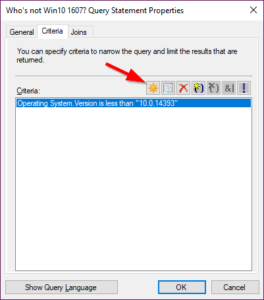
Under the “Criteria” tab, I created a new criterion (click the star button).

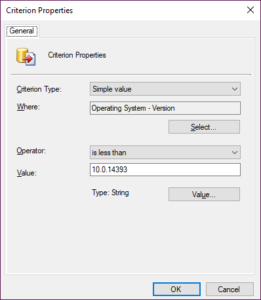
In Criterion Type, leave the type as “Simple Value” and click “Select…”  Choose “Operating System – Version.”  For the Operator, choose “is less than” and type “10.0.14393” in “Value.”

Note: if you want to include 1607, change the operator to “less than or equal to” instead.

Also note: the value field is a string value, so we’re lucky in that “10.0.xxxxx” occurs earlier as a string than Windows 7 and Windows 8 versions (which start with 6).  If I wanted only Windows 7 or Windows 8 machines, I’d have to get a little fancier with my criteria if I didn’t want to include Windows 10 in the results.

Click OK.

For my query, I only wanted certain fields (columns), not all of them.  So I chose Name, Last Logon User Name, Last Logon Time Stamp, Version, Last Boot-up Time, IP Addresses, and Operating System Readiness Branch.  You can choose other fields by clicking the “Select” button and going through the desired attributes.

To use this set, you can also use my query in a query language window if you don’t want to go through the click/select process.  Click the “Show Query Language” button and copy/paste this:

select SMS_R_System.Name, SMS_R_System.LastLogonUserName, SMS_R_System.LastLogonTimestamp, SMS_G_System_OPERATING_SYSTEM.Version, SMS_G_System_OPERATING_SYSTEM.LastBootUpTime, SMS_R_System.IPAddresses, SMS_R_System.OSBranch from  SMS_R_System inner join SMS_G_System_OPERATING_SYSTEM on SMS_G_System_OPERATING_SYSTEM.ResourceID = SMS_R_System.ResourceId where SMS_G_System_OPERATING_SYSTEM.Version < "10.0.14393" order by SMS_G_System_OPERATING_SYSTEM.Version

Note: Change the < to <= if you want to include 1607.

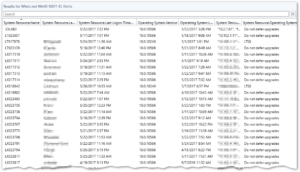
Once you’re done, run the query.  I have 45 devices on versions of Win 10 earlier than 1607:

I can see now that most of my users are on Current Branch.  I have three on 1507 (support for which just ended), and given who the users are, they need updates (updating won’t break what they do).  Everyone else is on 1511.

When I change my query to <= 10.0.14393 instead, I get over 150 results, so that means most of my deployments are on 1607 (yay!).

Finally, a side benefit I discovered in this query is that I could find a few incorrectly named computers that have Windows 10 deployed.  Our naming convention includes the form factor of a device as well as its OS version so that we can see what we’re dealing with at a quick glance without having to look it up.  Within the first five entries, I see three computers that need to be renamed (which is a help desk ticket for the technicians responsible for those areas).


Windows 10 Enterprise vs. Education

Numerous posts and bits of info exist on the difference between Windows 10 Enterprise edition and its counterpart, Education.  In a nutshell, they are both functionally the same product.  The main immediate difference is that Win10 Education, which is only available through an educational institution’s volume licensing agreement with Microsoft, allows an in-place upgrade over Windows 10 Home Edition.

This allows schools to purchase devices with the lower-cost Home edition installed, and upgrade to Enterprise-grade Education version on top of it.

However, I overheard at the Midwest Management Summit this past week (May 15 – 18, 2017) that Microsoft is beginning to hint that educational institutions that have been using Win10 Enterprise should really switch over to Education instead.  I haven’t found any confirmation on this or what’s planned for the future to enforce this shift, however.

“But I’ll Never Remember a Complicated Password!”

An article about password security, aimed at the average person or IT people who work with average people and need another way to explain it.

Social engineering seems to be the easiest way to grab a user’s password, and despite suspicion on the part of IT staff, the average user gets roped in pretty quickly. Phishing attempts are getting bolder and more sophisticated, and objectively speaking, I have to applaud some of the efforts because they’re pretty good.

Not much can be done to secure an account if the account holder willingly gives it up. But mitigating damage from brute-force attacks and even “shoulder surfing” can be much easier.

Use a phrase or sentence.

Mix in a few capitalizations, maybe even skip a character. Try it out here:

https://password.kaspersky.com/

In a nutshell, the more characters there are to try to figure out, the harder it gets mathematically to solve. For illustration’s sake, with a single-digit number, you have a 1 in 10 chance of getting it right. For a human, it’s pretty simple. For a computer, it’s instantaneous.

Add another digit, and the odds increase to 1 in 100.

For a single letter of the English alphabet, the chance of “cracking the code” is 1 in 26. Add another letter (where repetition is allowed) and the odds are 1 in 676 (26 x 26).

Still pretty easy for a computer.

While words of multiple characters and numbers are more complex, computers are able to use dictionaries and heuristics to figure out a password (“heuristic” being essentially the practice of starting with “most likely” then working outward). Add in behavioral analysis (especially through mining big data acquired via social media), and a computer can easily figure out the most popular passwords for a school teacher at this time of year:

  • summer
  • summer1
  • Summer123 (this of course being the most complex…..)

Seriously. We went through a lot several years ago to get our teachers to stop doing this.

Conversely, a password like S&4u_sO9%8sS8^2HhYvoO is nearly impossible to crack….but also nearly impossible to remember. Plus, not every system out in the wild can handle all of these requirements; some systems can’t handle special characters, others can’t handle certain special characters, and I still see systems that demand a maximum of 8 characters (in 2017!!!).

A comic to explain more technically

The balance between a password complex enough to make it difficult for computers to crack but simple enough for a human to remember is to use a sentence or phrase. Artificial intelligence is not yet at that point where a system can guess the meaning and impact of certain terms.

Try “My Cat is 17 Years Old” (author’s note: my cat is not 17 years old…I don’t even have a cat……… or do I?).

This isn’t to say that a computer won’t find out your password within seconds or minutes. It could be very, very lucky. But the chance of that happening is incredibly slim. Much slimmer than if your password was cat17. But not as slim as King Illegal Forest to Pig Wild Kill In It A Is.

Convert Names from ALL CAPS (or all lower) to Mixed Case in SQL

Preface: use LENGTH for MySQL, LEN for Transact-SQL (SQL Server). I copied the following code from one of my MySQL instances. Couldn’t figure out initially why LEN wasn’t working, before I remembered that I was still thinking in Transact-SQL instead of MySQL. Yay for industry standards! </sarcasm>

SELECT
   concat(upper(left(first_name,1)),
   lower(right(first_name, length(first_name) - 1))) as [whateverAlias],
   concat(upper(left(last_name,1)),
   lower(right(last_name, length(last_name)-1))) as [whateverAlias]
FROM
   [table]

upper(left(first_name,1)) grabs the first character of your first_name field and changes it to upper case.

lower(right(first_name, length(first_name)-1)): Taking the total length of the first_name field, then subtracting 1, go from the right that many characters, since we’re skipping the first character. Change that to lower case. Remember to use LEN instead of LENGTH in Transact-SQL

concat (….) as whatever: concatenates the upper case letter and lower case remainder into a new whatever value that’s more easy to remember than upper(left(first……).

An Analogy from an Unlikely Source

Following up from my previous post about using analogies to describe technical terms to non-technical people, I heard what might be the best analogous circumstance from somewhere I didn’t expect.

A cable shopping channel.

On QVC this morning, as we were flipping channels looking for programs for the kids, I landed upon a segment selling HP laptops. And despite one of the hosts’ scripted, insincere sincerity and exuberance describing technology to viewers in the guise of a “conversation” with his cohost, he (or his writers) used the analogy of a restaurant kitchen to describe the internal workings of a computer.

The multi-core CPU was the chefs in the kitchen. It split duties among them all in order to manage specific tasks simultaneously, and the more chefs one has in the kitchen, the more duties they can govern. Head chef, sous chef, commis chef, etc. Each can be likened to one of the cores of a processor, handling its own assigned task both independently and in conjunction with the other cores to complete the overall task (the meal).

The RAM is the counter or work surface. The greater the amount of RAM in the computer, the larger the work surface in the kitchen, which means the more ingredients and dishes can be placed at any given time before they have to be moved out to their next destination. If a counter is only 1′ by 3′, there’s a limit of the number of plates that can be placed there before another process (the servers) have to move them out, which means delays if the servers are busy. Conversely, if the counter is 3′ by 16′, then not only can more plates be placed on the counter, freeing the cooks to continue working, but servers don’t have to wait for dishes and more dishes can be placed for expediting.

The hard drive space is the size of the walk-in and dry-goods storage, which is pretty self-explanatory.

Admittedly, despite my disdain for the cable shopping channels simply because of the mind-numbing superficial presentation of the shows and hosts, this particular analogy was actually brilliant. I may not be in the business of consulting with my colleagues for home computer purchases, but the reality is that I get asked quite frequently. And because of my innate expertise, I’m going to help them out, because why wouldn’t I?

I’m going to use this restaurant analogy now.

Specializing or Generalizing?

We humans have a limited amount of resources available for pretty much anything. Whether it’s money, time, energy, general give-a-darn, we don’t have infinite amounts of it. There is no limitless supply of money/time/energy/give-a-hoot waiting in the wings, available for anytime we need it.

So too does that apply to determining what to do with one’s IT career.

In the distant past, when technology was still new, and support was in its infancy, we IT pros had to generalize to survive. We were expected to know everything about everything — networks, operating systems, software, cabling, databases, security, programming. You name it, we were expected to know it. And what was the end result?

Mediocrity.

The problem is that we have limited time and ability to learn all there is to know about everything within the time constraints we’re given. In the analogy of the ice cube tray, our resources are illustrated by a pitcher of water (not a faucet). From that pitcher, we can choose two paths:

  1. Fill all the cube receptacles all at once and see what level they reach, or
  2. Fill each receptacle sequentially, knowing that there will be empty cells.

With #1, we ensure that every cell or receptacle or cup as at least some water. With #2, we ensure that we can fill as many as possible to the top, but we know that others at the end will remain empty.

This is the illustration of generalization (#1) vs. specialization (#2). So which is “better?”

That all depends on your own set of values. Personally, as a student of life, I love to know a bit about everything so that if a topic ever comes up in conversation, I can participate to some degree. I love science. I can discuss some literature, art, and music. I play a few instruments. I know quite a bit of history. I can teach someone the basic fundamentals of calculus using AD&D terminology.

But I’m far from an expert in any of those fields. This is because I filled my ice cube tray from that pitcher all at once, to try to get some water in at least every cell.

I know some brilliant musicians, but who are terrible at cooking. I know phenomenal artists who are awful at math. And of course, I know plenty of savant-like IT people in various specialties who are clearly deficient in other areas of life.

These are the people who’ve concentrated on filling one cell in the ice cube tray from the pitcher at a time, to make sure that they are using all the available resources to fill that one cell to the top before moving on to the next.

Now, obviously, there are pros and cons to both approaches. Neither is better than the other, because again, it all depends on what you value more. As an IT professional, generalization does make it a bit more difficult to land that prestigious job or even do some more focused job searching, while the specialist knows what he or she is targeting and what to get….but the opportunities are further and fewer in between.

The generalist can probably find more opportunities to submit applications, but yield fewer interviews or offers. The specialist may find very few application opportunities, but the ones they do land, interviews almost seem to happen right away. The generalist might have greater flexibility in moving from field to field while the specialist is stuck in a handful of areas of expertise.

There are benefits and drawbacks to both approaches. Which you select depends on what you value more, and your tolerance for risk.

Using Analogies

Having been involved in technology pretty much my entire life, tech concepts come pretty easily to me. But I also understand that it’s not the case for everyone, regardless of age or exposure. For example, we may often wonder — especially from my generation — why younger folks seem to have difficulty with technology when they’ve grown up with more exposure than we have.

That can be countered simply by saying that we, of my generation (born in the ’70s), have grown up exposed to cars all of our lives….but we are not necessarily qualified to repair them.

Exposure doesn’t equate expertise.

This is one of the examples of analogies that I like to use to bridge gaps in understanding when it comes to technology. Not everyone I encounter in my role in IT is going to be up to speed on all aspects of tech (that’s why I exist). But framing technology into terms that mirror ubiquitous concepts, like cars or the medical profession, seems to help open up the listener’s mind to the possibilities in the conversation.

By framing technology into familiar concepts and terms, audiences can start to see that technology is not as intimidating or daunting as first feared; that, like the other familiar concept, it can be learned and understood one piece at a time. Similarly, even complex technological concepts can be broken down and more easily digested once the fundamentals are understood through the use of analogies.

Another parallel conversation regarding information technology can be the profession itself. Young professionals and students exploring careers in IT may not be aware of the range of choices and specialties that fall within the broad umbrella of IT. Thus, it can be tempting to ask “what’s the best way to break into IT?” or “what degrees/certifications do I need in order to become an IT professional?”

Unfortunately, a question like that is akin to asking “how do I become a medical professional?” without specifying what professional study in medicine or even a specialization. In medicine, one must choose a professional path (doctor? nurse? research scientist? EMT?) and specialization (trauma surgeon? cardiology? rheumatology? orthodontics? optometry?), and that in turn will determine the education, certification, and residency requirements in order to fulfill those goals. IT is no different — choose a path, choose a specialty, then determine the requirements to achieve that goal.

Despite its commonplace existence, IT is still in a way considered a nascent industry. Thus, understanding the underpinnings of “the job” is not nearly as commonplace as presumed. Using analogies to equate the aspects of information technology fosters that understanding and learning about our profession by those who are not as familiar with it, without taking on a haughty and arrogant attitude that seems unfortunately too commonplace within our peer group.

LikeUsing AnalogiesCommentShareShare Using Analogies

Replacing an LCD in a Laptop in About 2 Minutes

With the increasing deployment of Chromebooks in a school environment, there will inevitably be an increase in damage to the LCD screen (laptops as well, of course). But when one breaks, it’s not always necessary to rely on an external service provider who might quote you $150 or more to replace the LCD.

You might as well just buy a new Chromebook for that kind of exorbitant price!

I gained a lot of experience replacing Chromebook screens when one particular school of mine experienced a 45% breakage rate (combination of flimsy construction and carelessness on the part of the student body). When a colleague received a quote from a company for $160 per unit, I laughed heartily, then made this video to show exactly how quick and easy it is to replace a screen.

https://youtu.be/Wog5XL7MUfw

A few caveats, of course:

  • Each model of computer or Chromebook will be different, but many have the removable bezel as shown in the video.
  • Some may require tools like plastic scribes or “black sticks” to carefully pry apart the bezel.
  • In any case, the more you do it, the easier it gets.
  • A replacement LCD is typically $50 to $60. One third the cost of the quotes we’d received!